Published on blog.codewaylabs.com
January 18, 2026
This hands-on challenge lab from the AWS Academy Cloud Architecting course (perfect for SAA-C03 prep) puts you in the shoes of Nikhil, a student helping a family-owned café launch its first website. The café, run by Frank and Martha with help from their daughter Sofía, needs an online presence to showcase their high-quality desserts and coffee.
In this challenge-style lab, some steps are intentionally vague to encourage independent problem-solving. This detailed walkthrough fills in those gaps while explaining why each step matters, tying everything to AWS Well-Architected Framework best practices: reliability, security, cost optimization, and operational excellence.
By the end, you’ll have a publicly accessible static website hosted on S3, protected with versioning, optimized with lifecycle policies, and backed up via cross-region replication (CRR).
Why This Lab Is Valuable
Static websites on S3 are serverless, globally scalable, and extremely cost-effective. Adding versioning, lifecycle management, and CRR turns a simple site into an enterprise-grade solution that protects against human error, controls costs, and enables disaster recovery. These are core concepts tested heavily on the AWS Certified Solutions Architect – Associate exam.
Prerequisites
- Access to the AWS Management Console (Free Tier works fine).
- The lab provides a .zip file containing
index.html, acssfolder, and animagesfolder. In a real scenario, you can create similar simple HTML/CSS or use free templates.
Challenge 1: Launching the Static Website
Step 1: Create the S3 Bucket
- Navigate to the S3 console.
- Create a bucket in us-east-1 (N. Virginia).
- Use a globally unique name (e.g.,
cafe-website-nikhil-unique). - Uncheck “Block all public access” and enable ACLs (as instructed in the lab).
- Leave other settings default.
Why this step in detail:
us-east-1 is required for the legacy static website endpoint format (http://bucket-name.s3-website-region.amazonaws.com). Newer regional endpoints work elsewhere, but many labs and older docs use us-east-1. Disabling “Block all public access” is necessary because static website hosting requires public read access to objects. The modern, secure approach uses bucket policies (which we’ll add next) rather than object ACLs, but the lab explicitly asks to enable ACLs for compatibility. Following least privilege, we’ll still use a precise bucket policy instead of making everything public via ACLs.
Step 2: Enable Static Website Hosting
- Open your bucket → Properties → Static website hosting → Edit → Enable.
- Index document:
index.html. - (Optional) Error document:
error.htmlif you have one. - Save and note the endpoint URL.
Why this step in detail:
This transforms S3 from pure storage into a fully functional web server. S3 automatically serves your index.html as the homepage and handles routing. It’s serverless — no servers to manage, 99.99% availability, and automatic scaling. Perfect for marketing sites like the café’s.
Step 3: Upload Website Files
- Upload
index.html, the entirecssfolder, and the entireimagesfolder. - Try opening the website endpoint — you’ll see “Access Denied”.
Why this step in detail:
Content must be in the bucket to serve. Folders are preserved in S3 (keys with /). Initial denial is expected — S3 defaults to private for security.
Step 4: Add a Bucket Policy for Public Read Access
- Bucket → Permissions → Bucket policy → Edit.
- Paste a policy like this (replace with your bucket name):
{
  "Version": "2012-10-17",
  "Statement": [
    {
      "Sid": "PublicReadGetObject",
      "Effect": "Allow",
      "Principal": "*",
      "Action": "s3:GetObject",
      "Resource": "arn:aws:s3:::cafe-website-nikhil-unique/*"
    }
  ]
}- Save.
- Refresh the website endpoint — it should now load!
Here are examples of what simple café static websites look like:
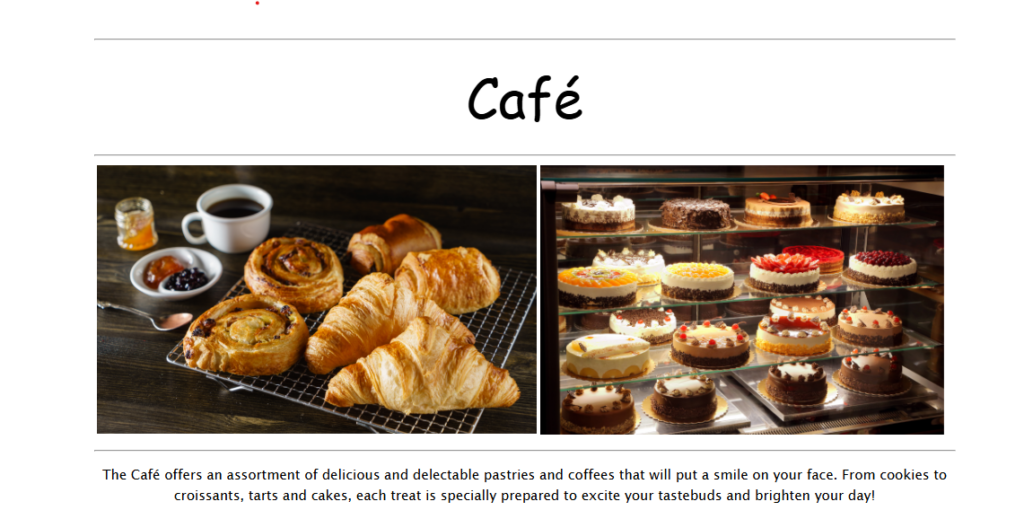
And some delicious dessert inspiration:
Why this step in detail:
The policy grants only s3:GetObject to anonymous users (*), following least privilege. Without it, the site remains private. In production, avoid public buckets entirely — use CloudFront with Origin Access Control (OAC) for defense-in-depth.
Challenge 2: Protecting Data with Versioning
Step 5: Enable and Test Versioning
- Bucket → Properties → Bucket Versioning → Enable.
- Edit
index.htmllocally: changebgcolor="aquamarine"to"gainsboro",bgcolor="orange"to"cornsilk", and the secondaquamarineto"gainsboro". - Re-upload
index.html(overwriting the key). - Refresh the site — new colors appear.
- In S3 console, toggle “Show versions” — you’ll see both versions.
Why this step in detail:
Versioning creates immutable versions of objects on every write. This protects against accidental overwrites or deletes — you can always restore previous versions. It’s a cornerstone of data protection and compliance. Once enabled, it can’t be disabled (only suspended), emphasizing its importance for critical data.
Bonus Insight (Lab Question 2): For maximum protection against accidental deletion of preserved versions, enable MFA Delete. This requires multi-factor authentication to permanently delete versions or change versioning status (per S3 FAQs).
Challenge 3: Cost Optimization with Lifecycle Policies
Step 6: Create Two Separate Lifecycle Rules
- In Amazon S3, Lifecycle Rules help you automate data management so you don’t pay for storage you don’t need. Since you have Versioning enabled, S3 keeps every old version of your files, which can get expensive over time.
Here are the detailed steps to create these two specific rules for yourcafe-website-nikhil-uniquebucket.
Prerequisites
Go to the S3 Console.
Click on your bucket name:cafe-website-nikhil-unique.
Click on the Management tab.
Under Lifecycle rules, click Create lifecycle rule.
Rule 1: Transition Old Versions to Standard-IA
This rule moves “noncurrent” (older) versions to a cheaper storage tier after 30 days.
Lifecycle rule name: EnterMoveOldVersionsToIA.
Choose a rule scope: Select Apply to all objects in the bucket.
Acknowledge the warning: Check the box that says “I acknowledge that this rule will apply to all objects in the bucket.”
Lifecycle rule actions: Select- Transition current versions of objects between storage classesThis action will move current versions.
- Transition noncurrent versions of objects between storage classes
- Transitions:
Storage class transitions: Select Standard-IA.
Days after objects become noncurrent: Enter30.
Number of newer versions to retain (Optional): Leave this blank (or enter a number if you want to keep at least $X$ versions in Standard storage).
Click Create rule.
Rule 2: Permanently Delete Old Versions
This rule cleans up data that is more than a year old to ensure you aren’t paying for ancient backups.
Click Create lifecycle rule again.
Lifecycle rule name: EnterDeleteOldVersionsAfterOneYear.
Choose a rule scope: Select Apply to all objects in the bucket.
Acknowledge the warning: Check the box.
Lifecycle rule actions: Select Permanently delete noncurrent versions of objects.
Configure deletion:
Days after objects become noncurrent: Enter365.
Number of newer versions to retain (Optional): Leave blank to delete all versions older than 365 days.
Click Create rule.
Why we do this (The Strategy)
By setting up these two rules, you have created a Storage Pipeline:
Days 1–30: Your old versions stay in S3 Standard (Fast access, higher cost).
Day 31: They automatically move to S3 Standard-IA (Same fast access, lower storage cost, but a retrieval fee).
Day 366: They are permanently deleted, and you stop paying for them entirely.
Note: “Noncurrent versions” are the files that were replaced when you uploaded a new file with the same name. Your current website files are never affected by these rules and will stay in the bucket forever.
Why this step in detail:
Versioning increases storage costs over time. Lifecycle policies automate optimization: move infrequently accessed older versions to cheaper Standard-IA (same durability, lower cost, minor retrieval fee), then delete very old versions to prevent indefinite growth. The 30-day transition keeps recent versions quickly accessible; 365-day expiration is a reasonable retention period. Separate rules demonstrate granular control and align with real-world multi-rule configurations.
Challenge 4: Disaster Recovery with Cross-Region Replication (CRR)
Step 7: Configure CRR
To complete Step 7, you are setting up Cross-Region Replication (CRR). This ensures that any new data uploaded to your primary region is automatically backed up to a secondary region for disaster recovery.
Follow these exact steps within the AWS Console:
1. Create the Destination Bucket
- Navigate to the S3 Console and click Create bucket.
- Bucket name: Enter a unique name (e.g.,
cafe-website-nikhil-dest-unique). - Region: Select a different region than your source (e.g., US West (Oregon) us-west-2).
- Bucket Versioning: Select Enable (Replication will not work without this).
- Keep all other settings as default and click Create bucket.
2. Configure Replication on the Source Bucket
- Go back to your Source Bucket list and click on your original bucket (
cafe-website-nikhil-unique). - Click on the Management tab.
- Scroll down to Replication rules and click Create replication rule.
- Replication rule name: Enter
BackupToWest. - Status: Ensure it is set to Enabled.
3. Define the Scope and Destination
- Source bucket: Select Apply to all objects in the bucket.
- Destination:
- Choose choose a bucket in this account.
- Click Browse S3 and select the destination bucket you created in Step 1.
- IAM Role:
- From the dropdown, choose the pre-created role: CafeRole.
- (In a real-world scenario, you would select “Create new role” if one wasn’t provided).
4. Finalize Replication Options
- Encryption: Leave the box for “Replicate objects encrypted with AWS KMS” unchecked (unless your lab specifically requires it).
- Delete marker replication: Ensure the box for Replicate delete markers is checked. (This ensures that if you “soft delete” a file in the source, the delete marker also appears in the destination).
- Click Save.
- Replicate existing objects? A pop-up will appear asking if you want to replicate objects already in the bucket.
- Select No, do not replicate existing objects.
- Click Submit.
Why “No” to Existing Objects?
In this lab scenario, selecting “No” means only new files you upload after this rule is created will show up in the destination bucket. To copy the files that are already there, you would normally need to use S3 Batch Operations, which is a separate (and often more expensive) process.
- Test:
- Upload another modified
index.html→ appears in destination. - Delete latest version in source → delete marker replicates to destination.
Why this step in detail:
CRR asynchronously copies objects (including versions, metadata, and delete markers) to another region, achieving 99.999999999% durability across regions and enabling disaster recovery. If us-east-1 has an outage, data survives elsewhere. Replicating deletes keeps buckets synchronized. The pre-created CafeRole teaches IAM delegation. In production, restrict the role to specific buckets only.
Here’s a visual of the final architecture with versioning, lifecycle, and CRR:
Production Recommendations
- Front with Amazon CloudFront for CDN caching, HTTPS, and OAC security.
- Use S3 Object Lock for immutable backups if compliance requires WORM protection.
- Monitor with CloudWatch and set alarms.
Conclusion
You’ve built a production-ready static website with resilience, cost controls, and DR — exactly what the café needs to grow its reputation online. This lab reinforces key architecting principles and is excellent practice for the SAA-C03 exam.
Clean up by deleting buckets to avoid charges. Happy building! ☕
Here are the answers to your AWS Academy Cloud Architecting Module 3 Challenge Lab, followed by an in-depth blog post explaining the core concepts behind these scenarios.
Lab Answer Key
- Question 1:No, the files are not publicly accessible.
- Reason: By default, S3 buckets have “Block Public Access” enabled. Even if you upload files, they remain private until you explicitly disable those blocks and add a bucket policy or ACL.
- Question 2:Multi-factor authentication (MFA Delete)
- Reason: MFA Delete adds an extra layer of security that requires a code from a physical or virtual device before a version can be permanently deleted.
- Question 3:Yes (Assuming replication was configured correctly).
- Reason: Once Cross-Region Replication (CRR) is active, new objects uploaded to the source bucket are automatically copied to the destination bucket.
- Question 4:No
- Reason: Replication does not replicate “permanent deletes.” If you delete a specific version in the source, S3 replication does not delete that version in the destination to protect against accidental or malicious data loss.
Mastering Data Protection in Amazon S3
When architecting in the cloud, storing data is only half the battle. The other half is ensuring that data is durable, accessible, and protected against both accidents and attacks. In AWS Module 3, we explore these themes through S3 Versioning and Replication.
1. The “Public by Default” Myth
One of the first hurdles students face is the “Access Denied” error when viewing a website. In AWS, security is the top priority. * The “Why”: Amazon implements “Block Public Access” (BPA) at the account and bucket level. Even if you want to host a static website, you must intentionally “unlock” the bucket. This prevents data leaks caused by misconfigurations.
2. Protecting Versions with MFA
Versioning allows you to keep multiple variants of an object in the same bucket. However, versioning alone isn’t a silver bullet. If a user has the right permissions, they could still delete all versions.
- The Solution: MFA Delete. By requiring Multi-Factor Authentication, even a user with compromised credentials cannot permanently purge a version without the physical MFA device. This is the “gold standard” for preventing accidental or malicious data deletion.
3. Cross-Region Replication (CRR): Why it Matters
Replication is used for disaster recovery and minimizing latency.
- How it works: When you enable CRR, any new object uploaded to your source bucket is asynchronously copied to a destination bucket in a different AWS Region.
- The Catch: Replication is not retroactive (it doesn’t automatically copy files that were there before you turned it on), and it is designed for data redundancy, not synchronization of deletions.
4. The “Delete” Behavior in Replication
A common point of confusion is what happens when you hit “Delete.”
- Delete Markers: If you delete an object in the source bucket without specifying a version ID, S3 adds a “delete marker.” This is replicated.
- Permanent Deletions: If you delete a specific version ID (a permanent delete), AWS does not replicate this to the destination.
- Why? This is a fail-safe. If a malicious actor or a buggy script starts deleting specific versions in your primary bucket, your destination bucket remains an untainted backup.
Key Summary Table
| Feature | Primary Purpose | Key Security Benefit |
| Versioning | Recovery from accidental overwrites | Keeps a history of all changes. |
| MFA Delete | Prevention of permanent data loss | Requires a second factor to purge data. |
| CRR | Disaster Recovery / Latency | Physical geographic separation of data. |
| Bucket Policy | Access Control | Defines exactly who can see/edit data. |
Er. Bikash Subedi


Leave a Reply